Your own ACF Fork
Start by making sure you have a GitHub account and know how to clone a GitHub repository by following our GitHub Desktop Tutorial.
Next, sign into your github account and navigate to the GitHub ACF repository.
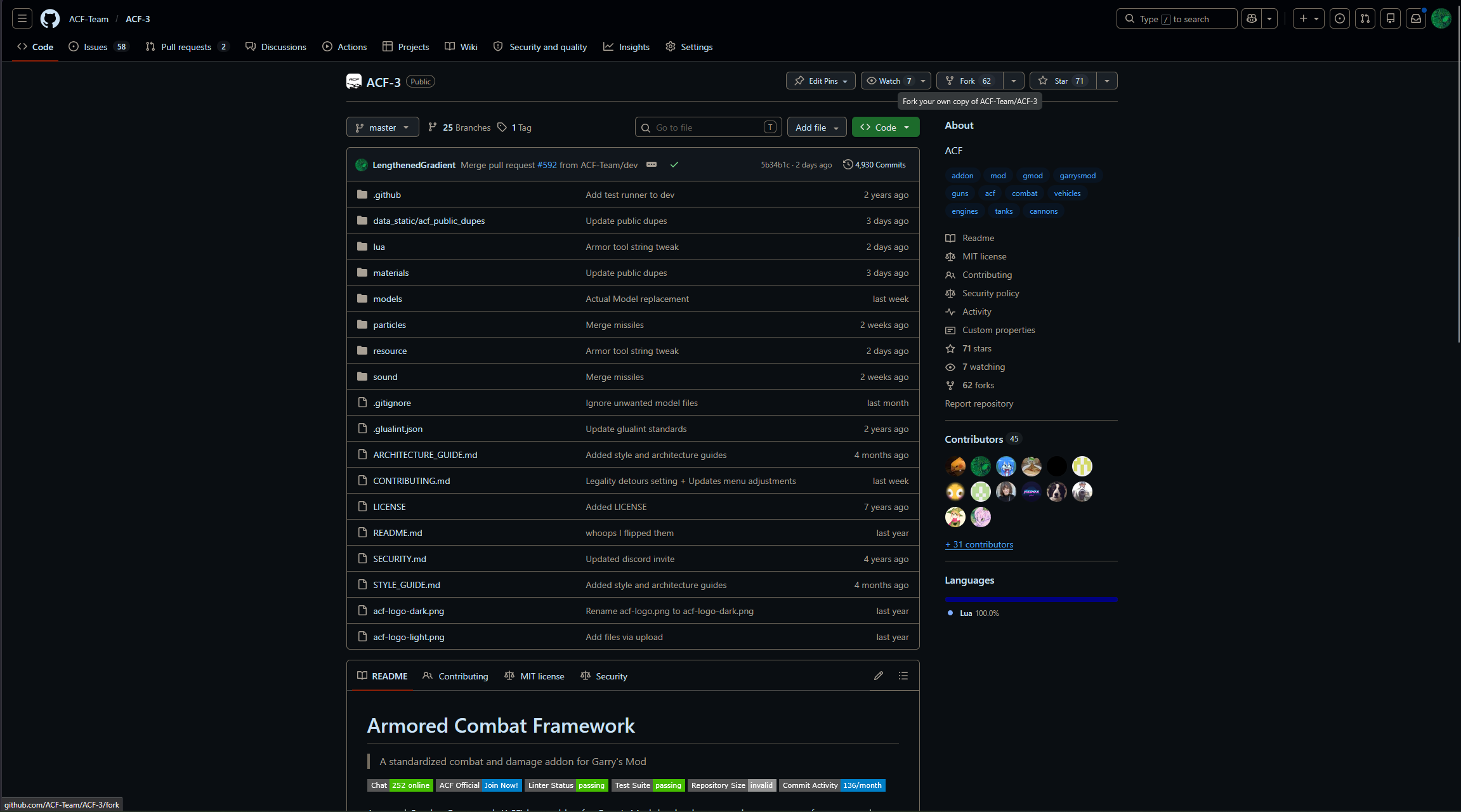
Click the “Fork your own copy of ACF-Team/ACF-3” button, which will show you this:
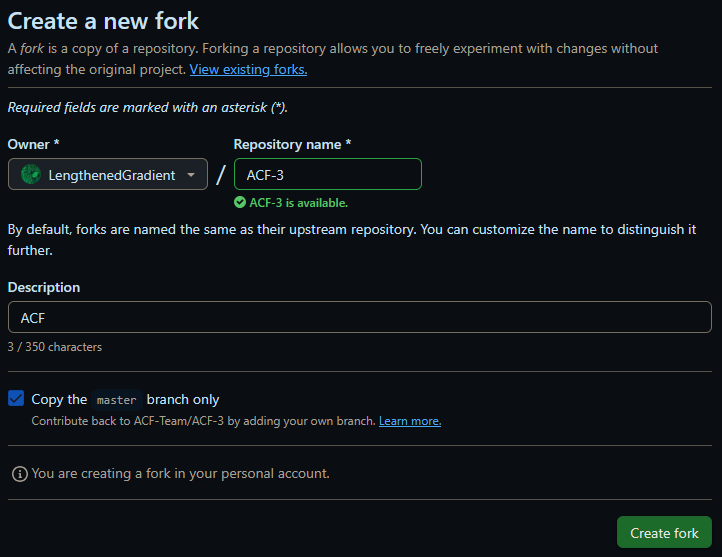
Without changing any settings, Click “Create fork”. You should be brought to a new page that shows your fork:
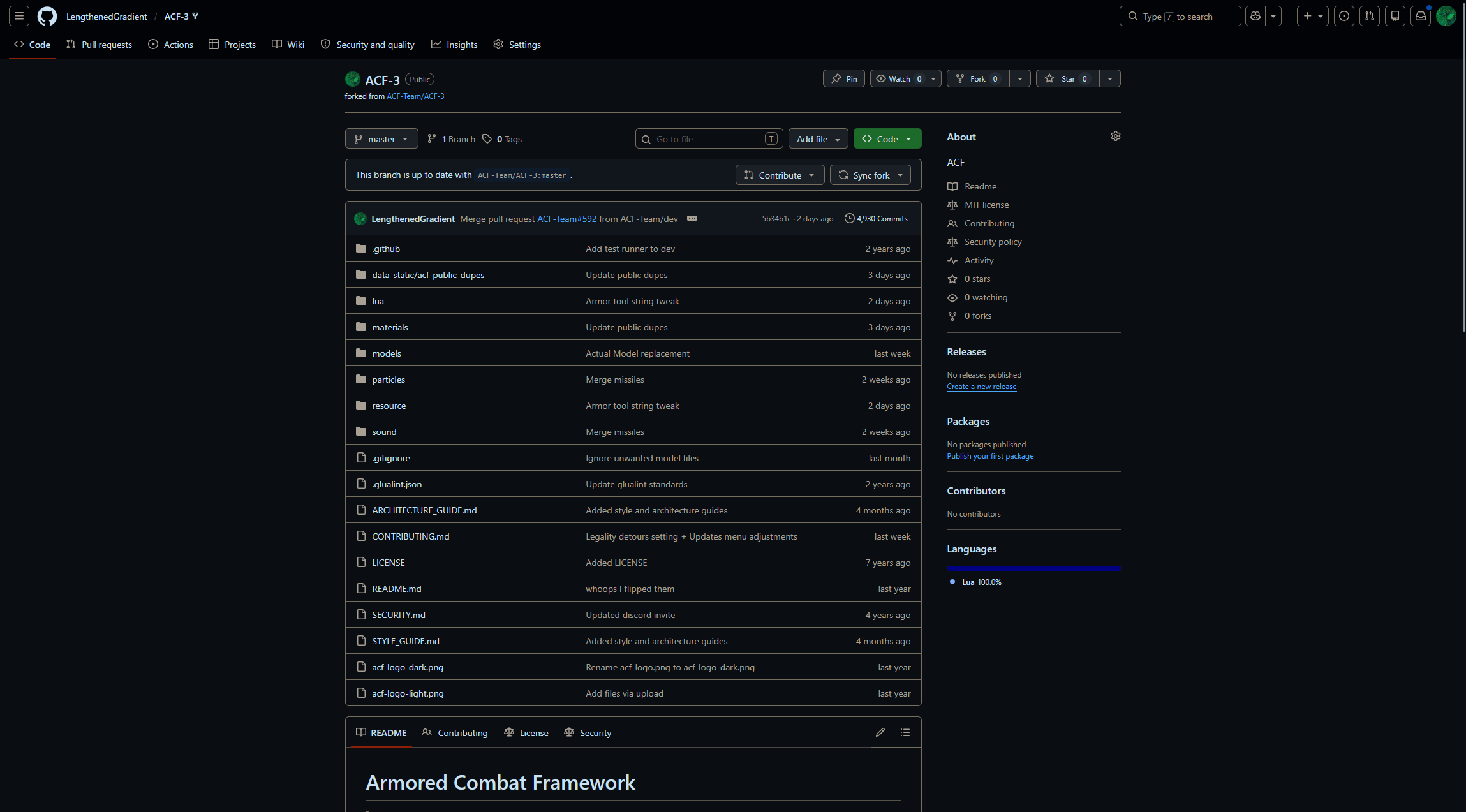
This fork is your own personal copy of the main ACF-3 repository. You will make your changes here without affecting the main repository (more on this later).
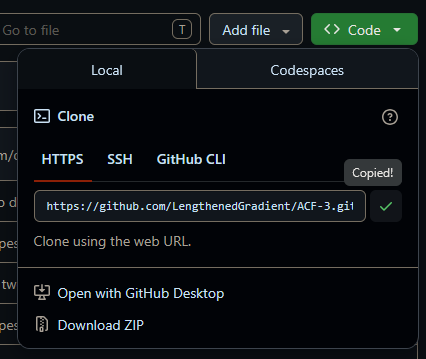
Copy the fork link, e.g. https://github.com/LengthenedGradient/ACF-3.git and clone the repository into your addon folder (e.g. C:\Program Files (x86)\Steam\steamapps\common\GarrysMod\garrysmod\addons\).
GLuaLint
A linter is a program that checks code for obvious bugs, correct style/formatting and correct syntax.
All contributions are expected to “satisfy” the linter’s tests.
GLuaLint is a linter for glua, which the addon is written in.
Navigate to their releases page and download the appropriate zip/gz file.
Inside there should be a runnable file called glualint.exe (depends on the OS).
Create a new folder at C:\Program Files (x86)\Steam\steamapps\common\GarrysMod\garrysmod\glualint\ and place glualint.exe inside.
Next, Add the folder you put glualint in to your PATH. This depends on your OS and we will show windows as an example.
Type in environment into your windows search bar and enter. A screen should show up like this:
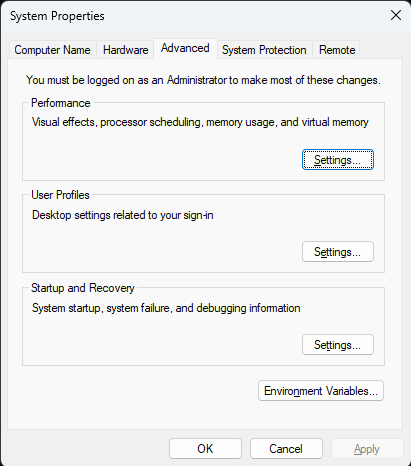
Click “Environment Variables” and find the “System Variables” section:
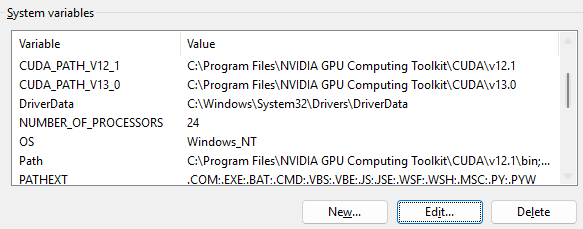
Double click the PATH variable and add in a new entry with C:\Program Files (x86)\Steam\steamapps\common\GarrysMod\garrysmod\glualint\
VSCode
You can use other IDEs or editors (e.g. Sublime text editor), but we strongly recommend VSCode.
Navigate to VSCode and download the relevant vscode version for your OS.
Don’t change any of the settings while installing (default settings are fine), just keep on clicking next and install it.
Open vscode and select File > Open Folder and navigate to your ACF addon folder.
Navigate to these two links and click the green “Install” button. This will redirect you to the extension’s page in vscode. Make sure to click “Install” there.
Last Modified: 27-May-26